This is a short our processing portal user guide designed to help you quickly understand and navigate the system. It provides a clear overview of key features, essential steps, and useful tips to ensure smooth and efficient use.

Profile
In the main profile area you can view all details regarding merchant’s details including address, registration number, account number and other.
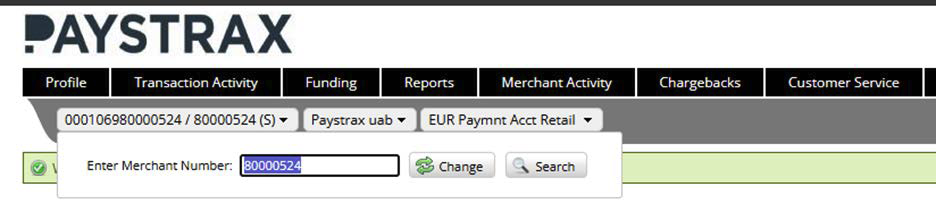

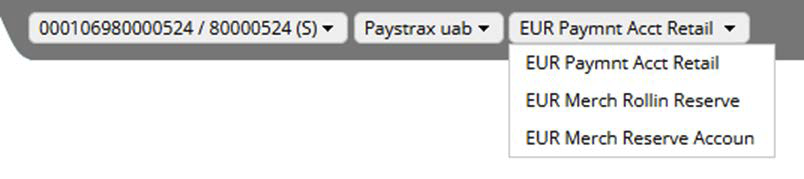

Transaction activity
To review transaction activity, most useful sections are Processed Batches and Processed Transactions.
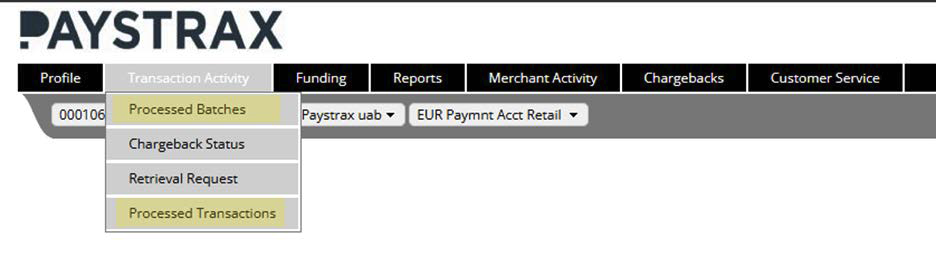
Processed batches
This section has an overview of transactions for a selected date range.
Transactions can also be searched by specific batch number.

Processed transactions
Here is an overview of all successfully processed transactions, purchases and refunds for the merchant.
For full view, downloading excel file is recommended as transactions are not listed on 1 page.
Retrieval request
This tab provides detailed overview about a specific card and its activity.


Funding account
This tab provides information regarding settlements made to the merchant. To view the account current balance, manual calculation formula is required as RAM only scatters the information and does not provide the final balance.
“Acc. Amt. Net” provides the amounts in merchant’s settlement currency that payouts are made, EUR, GBP, USD etc.
Please follow the steps required to retrieve the information needed:
Funding >> Account
Go to Funding, Account subsection.
Filters
Select the date range as needed, depending on the date of settlements for your merchants.
Download
Click download and select CSV file.

Open the file within a blank excel workbook (do not convert the file).
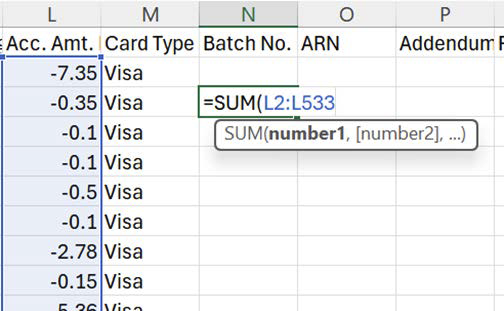
Look at the amounts in column with “Acc. Amt. Net”, click on an empty cell and use the formula =SUM
Then holding shift key on your keyboard, click on the first amount in “Acc. Amt. Net” and drag the formula down until the very last numbers you see in in that column, like so:
Funding >> Account statement view
A summary of settlements and fees. Provides information such as service charges, fees, etc.
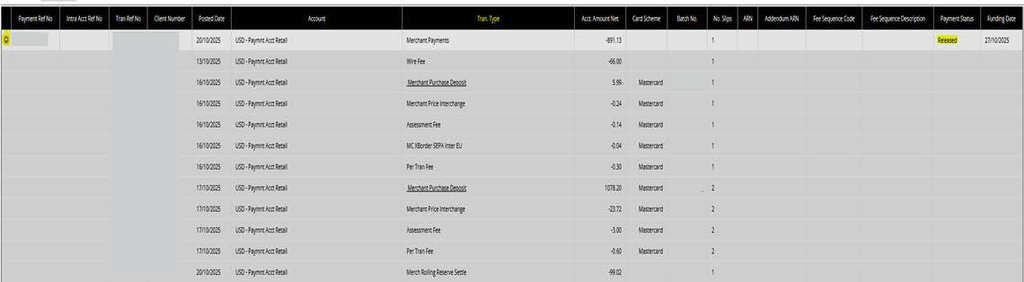
Funding >> Payment breakdown
Shows information about settlements, rolling reserve, fees and the funding date of the payments. Information can be expanded using the ‘+’ icon on the left, this will give you more detailed information of the transaction types.

Reports
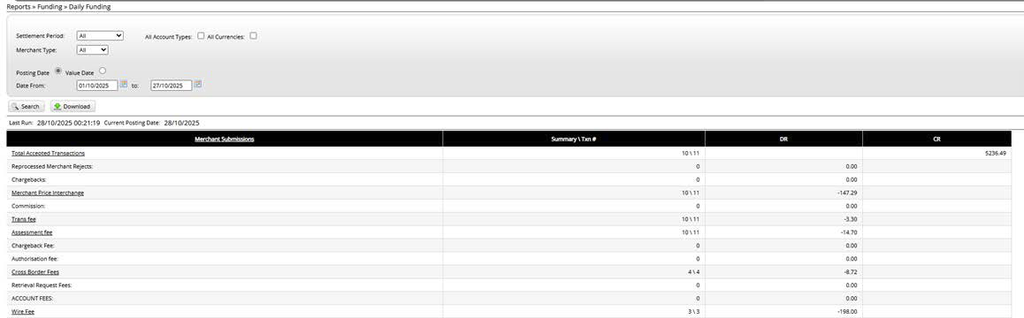
Reports>> Funding >> Daily Funding
This report can be used to reconcile monthly data. Here you can find information about turnover both processed transactions and applied fees.
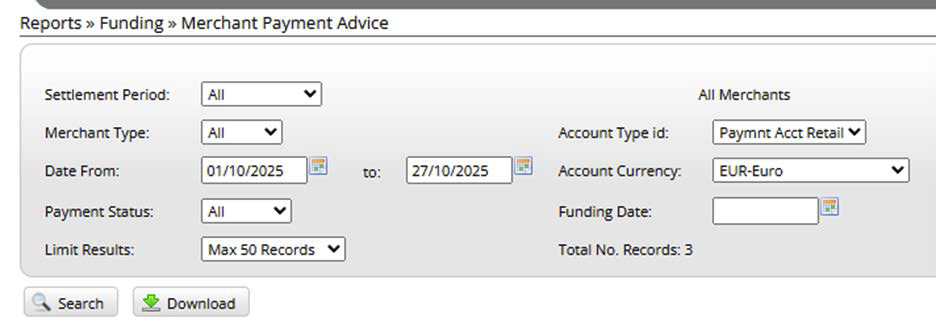
Reports >> Funding >> Merchant Payment Advice
Shows the status of released payments, their date and the account funds have been transferred to.

Merchant activity
Merchant Activity >> Authorisation History
Provides a list of authorised transactions for merchant. In this tab transactions can only be searched with 1 day range:


Chargebacks
Chargebacks >> Case List
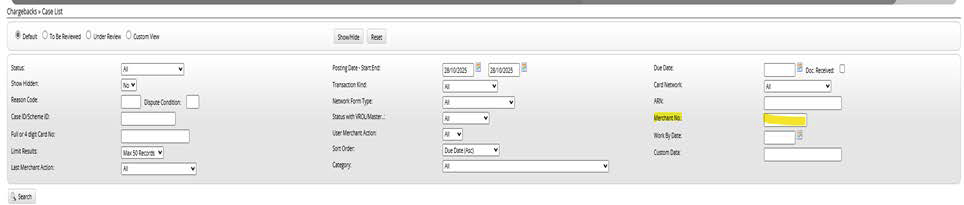
This tab is used to resolve any disputes filed against merchants. All statuses, submitted documents, responses from schemes relating to chargebacks are listed here. Please ensure searching by merchant number to retrieve all its chargebacks.
If a merchant receives chargeback, please ensure checking it every day for the status and any related updates as Processing Portal does not send notifications if a response or more documentation is required.

2FA Instructions
The Processing Portal user Login page has authentication using only the Time-based One-Time Password (TOTP) method. Users can log in with a TOTP generated by any compatible authenticator application of their choice.
Authenticator
Please download an authenticator of your choice from the list before enabling a new Two-Factor Authentication (2FA) TOTP login option. You can select preferred authenticator, such as:
- Google Authenticator
- Microsoft Authenticator
- PingID
- 1Password
- Or any other compatible authenticator of your choice
Login page
On the Processing Portal user Login page, you are required to enter your username and password. After successful verification, you will be redirected to the two-factor authentication (2FA) page, where you must complete the login process using a Time-based One-Time Password (TOTP) generated by your chosen authenticator application.
How to setup TOTP for the first time
1. If a user logs in with the 2FA method for the first time, the system displays the following message:
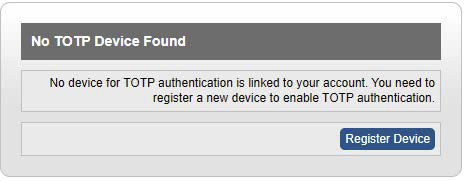
2. The user needs to select Register Device and then will be asked to verify the email PIN.
Upon successful verification of the email PIN, the user needs to enter a name for the authenticator device and click Register.
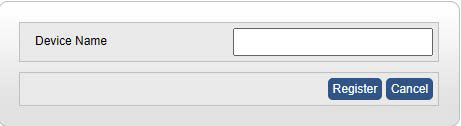
3. A QR code will be displayed, which the user needs to scan with their authenticator application of choice.
If the Authenticator app does not support QR code, then the “Pairing Key” can be used in the authenticator application. To see the pairing, press “Show” button.
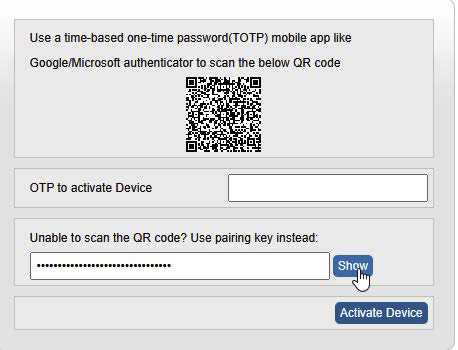
4. The user’s authenticator app will generate a 6-digit TOTP. The user should enter the TOTP in the “OTP to activate Device” field and click Activate Device.
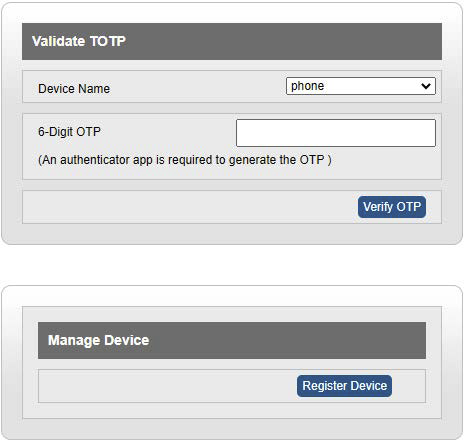
Once a device is activated, the user will be brought to Validate OTP screen, where they need to input the 6-digit TOTP generated by their authenticator to complete RAM login.
Login with an already registered device
Once a device has been registered, the login process becomes much simpler the next time a user logs into Processing Portal.
The user will need to enter their username and password, select the “Authenticator” radio button and on the following page, validate the TOTP by entering the 6-digit code from their authenticator app.
Additionally, users have the option to register a new device if they no longer have access to the previously registered device.
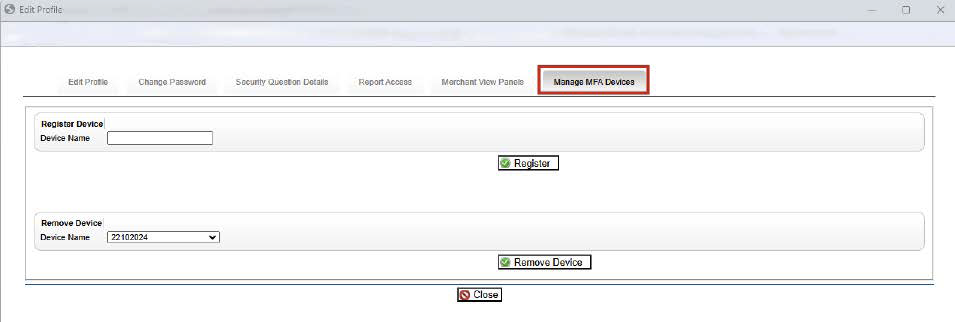
Managing multi factor devices
A new tab, Manage MFA Devices, has been added to the Edit Profile pop-up. This tab is used to manage MFA devices – e.g. register a new device/remove an existing device.